Can you use a hotspot with a travel eSIM?
Check whether a travel eSIM allows hotspot use, turn on tethering on iPhone or Android, and prevent a laptop from consuming the plan unexpectedly.
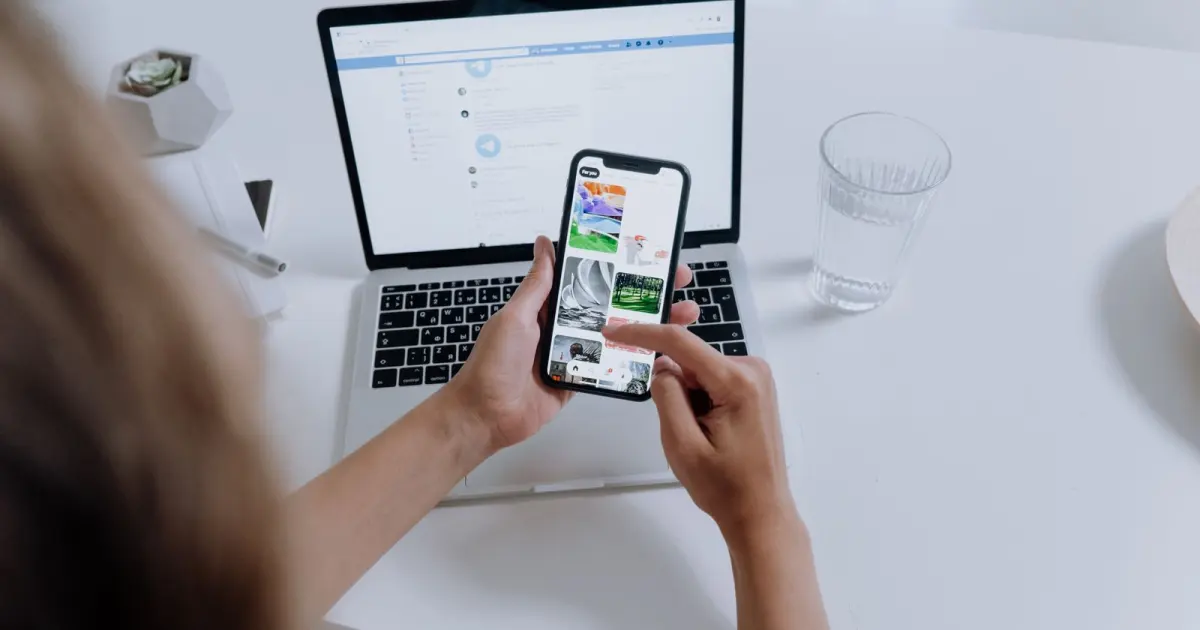
A travel eSIM can provide a phone hotspot when both the device and the data package permit tethering. The hotspot button on the phone proves only that the device has the feature. The package may still block tethering, apply a smaller hotspot allowance, count it against a fair-use threshold, or require a carrier setting. Check the written plan terms before connecting a laptop.
When tethering is allowed, the hotspot uses the mobile-data line currently selected on the phone. In a dual-SIM setup, verify that the travel eSIM is that line before turning the hotspot on.
Check the plan before the phone
Look for these fields on the package page or in its additional information:
- Hotspot, tethering, Personal Hotspot, or data sharing is explicitly allowed.
- Hotspot data comes from the main allowance or has a separate limit.
- An unlimited plan applies the same or a different fair-use policy to tethered traffic.
- The plan supports the APN settings needed for tethering.
- The local partner network does not impose an additional restriction.
Google warns that some carriers limit tethering or charge extra. Apple likewise says Personal Hotspot requires a carrier plan that includes the service and that availability can depend on the carrier. A travel eSIM seller's package terms take the place of a normal monthly carrier description, so read the terms for the exact destination and package.
If hotspot use is essential for work, save the relevant term with the purchase record. Do not infer permission from a provider's other destinations or from an old review.
Turn on Personal Hotspot on iPhone
First select the travel eSIM for data:
- Open Settings > Cellular > Cellular Data.
- Choose the travel eSIM.
- Turn Allow Cellular Data Switching off if the home line must never supply data.
- Apply the travel provider's required data-roaming setting.
Then open Settings > Personal Hotspot, or Settings > Cellular > Personal Hotspot, and turn on Allow Others to Join. Set a strong Wi-Fi password. On the laptop or tablet, choose the iPhone's hotspot name from the Wi-Fi list and enter that password.
Apple also supports hotspot connections over USB and Bluetooth. Wi-Fi is convenient for several devices. USB can be more stable for one laptop and can charge the phone, though adapters and operating-system support matter.
If Personal Hotspot is missing or dimmed while cellular data works, Apple advises contacting the carrier about hotspot support. For a travel eSIM, check the provider's support instructions and APN before changing unrelated phone settings.
Turn on a hotspot on Android
On many Android phones, swipe down and tap Hotspot in Quick Settings. On Pixel, the full path is Settings > Network & internet > Hotspot & tethering > Wi-Fi hotspot. Samsung commonly uses Settings > Connections > Mobile Hotspot and Tethering.
Before connecting another device:
- Open SIM settings and select the travel eSIM for mobile data.
- Apply the provider's roaming and APN instructions.
- Set a unique hotspot name and strong password.
- Turn on the Wi-Fi hotspot.
- Connect the laptop, then verify that the travel plan counter changes.
Android can also tether by Bluetooth or USB. Google notes that most Android phones support mobile-data sharing through Wi-Fi, Bluetooth, or USB, although some instructions require a recent Android version and manufacturer menus differ.
Prevent a laptop from draining the allowance
A laptop sees a hotspot as an internet connection and may immediately start tasks that the phone normally performs only on Wi-Fi. Before connecting:
- Pause operating-system and app updates.
- Pause cloud-drive and photo synchronization.
- Mark the network as metered when the operating system offers that option.
- Close video, game-launcher, backup, and large-download apps.
- Lower video-call quality when practical.
- Turn off automatic media downloads in messaging apps.
- Check both the provider counter and phone data counter during the first session.
Add laptop use separately when using the travel-data estimator. A phone baseline rarely includes a computer syncing a large folder or downloading an update.
Watch battery, heat, and security
Hotspot use keeps the cellular radio and Wi-Fi active, which consumes battery and can warm the phone. Plug in for longer sessions, keep the phone out of direct sun, and do not cover it with insulating material. Stop if the device shows a temperature warning.
Use WPA2 or WPA3 security when offered and a password that is not reused elsewhere. Turn off the hotspot when finished. An open hotspot can let nearby devices consume the allowance and exposes traffic to avoidable risk.
The number of connected devices can also depend on the phone and carrier. More devices share the same mobile connection and make the usage harder to attribute.
How unlimited-plan rules affect tethering
Unlimited does not guarantee unlimited hotspot data at full speed. A plan may count phone and hotspot traffic toward one daily threshold, set a separate tethering allowance, or prohibit hotspot use. Read the unlimited eSIM fine-print guide and record:
- Daily high-speed threshold.
- Reduced speed.
- Reset time.
- Hotspot allowance.
- Number of permitted devices, if stated.
A 2 GB daily high-speed threshold can disappear quickly when a laptop syncs media. If the reduced speed is unsuitable for work, a larger fixed package with allowed tethering may be the more useful plan even if it is not labeled unlimited.
Troubleshoot a hotspot that has no internet
Work in this order:
- Turn the hotspot off and confirm mobile data works on the phone itself with Wi-Fi disabled.
- Verify that the travel eSIM is selected for data.
- Check the package is active, in coverage, and not depleted or throttled.
- Confirm hotspot use is allowed.
- Compare the APN with the provider's instructions, including any separate tethering APN.
- Restart the hotspot and reconnect one device.
- Restart the phone if needed.
- Contact the provider with the package name, destination, phone model, and observed error.
If mobile data fails on the phone too, the hotspot is not the root problem. Use the eSIM activation troubleshooting guide before changing hotspot passwords or laptop network settings.
Sources
Updated
- 1Use Instant Hotspot to connect to your Personal Hotspot
Apple Support · Accessed
- Personal Hotspot requires an active carrier plan that includes the service.
- Hotspot availability and the number of connected devices can depend on the carrier and iPhone model.
- 2Share a mobile connection by hotspot or tethering on Android
Android Help · Accessed
- Most Android phones can share mobile data through Wi-Fi, Bluetooth, or USB.
- Google warns that carriers may limit tethering or charge extra for it.
- 3Share a mobile connection by tethering or hotspot on Pixel
Google Pixel Help · Accessed
- Pixel exposes Wi-Fi hotspot controls under Network and internet and Hotspot and tethering.
- Google recommends plugging in during tethering and turning the connection off when finished.
Directory
Related profiles
Holafly
Holafly mainly sells unlimited-data eSIMs for countries and regions, along with a global subscription. Its Japan page shows trip length and price, but hotspot and speed limits depend on the plan. Refund requests can be made within six months if the plan meets the policy rules.
- Updated
- 18 July 2026
Nomad
Nomad sells local, regional, and global travel eSIMs, including fixed-data and unlimited plans. Its Japan page lists the network, price, data, validity, 4G or 5G support, and hotspot use. Refunds are simpler before a plan is installed or activated.
- Updated
- 18 July 2026
Airalo
Airalo sells local, regional, and global travel eSIMs for more than 200 locations. It offers fixed-data and unlimited plans, top-ups, an app, and support in several languages. Network, voice, identity-check, and unlimited-data rules vary by plan.
- Updated
- 18 July 2026
Continue reading
More guides

Do travel eSIMs come with a phone number?
Some travel eSIMs include a phone number and mobile calls or texts, while data-only plans rely on internet calling and messaging apps.
Read article
When should you install and activate a travel eSIM?
Install a travel eSIM before departure only after checking when its validity begins, then connect it at your destination with the correct settings.
Read article
How much mobile data do you need for travel?
Estimate travel data from your own phone history, trip length, video and hotspot plans, then add a practical buffer without overbuying blindly.
Read article